


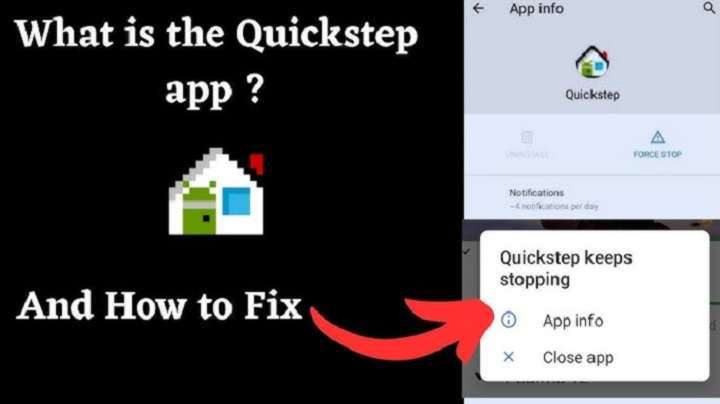
You are scrolling through your phone settings or app drawer and catch a glimpse of something unusual: an application called Quick Step. You never installed it. You are asking yourself what for. And then the question that matters the most—Is the Quick Step app safe, and do I need it at all?
You are not alone. Most of us Android users are stuck with this fake app. It doesn’t behave like your other programs. You can’t uninstall it. It likes to linger in the background. Even some folks consider it malware. But the truth is simpler—and reassuring.
This guide will break down everything about the Quick Step app. We’ll explore what it is, why it exists on your device, whether it’s safe, how it works, and what to do if it’s causing problems. By the end, you’ll feel clear and confident about whether to keep it, update it, or disable it.
What Is the Quick Step App?
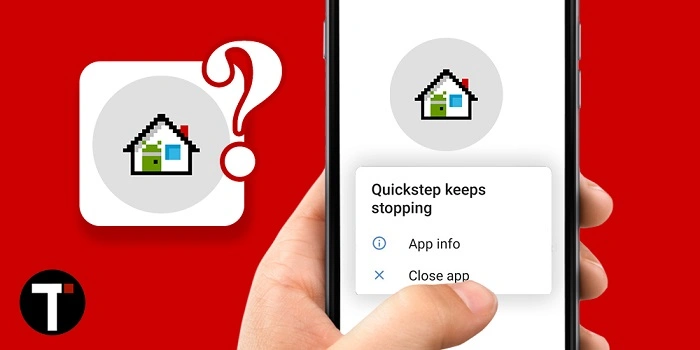
Quick Step isn’t a desktop app. It is a system feature that comes pre-installed on most Android phones. More specifically, it’s included in the launcher—the application that manages your home screen, recent apps, and gestures.
Think of it as the brain behind app switching. When you swipe up to view apps you’ve just launched, or when you switch from one app to another, Quick Step is the brains behind all that.
It originally arrived with Android 9 (Pie) when Google introduced gesture navigation. Since then, it’s been a standard feature on most Android phones across Samsung, Motorola, and OnePlus.
Why Quick Step on Your Phone?
It has one purpose and one purpose only: to give you a new gesture-based navigation. The old Android devices had the three-button layout down (Back, Home, Overview). Quick Step replaces them with swipes and fluid movement.
Now, rather than tapping, you swipe to:
- Go home.
- Switch between recent apps.
- Open the app drawer.
- Switch between tasks smoothly.
It’s all in the attempt to naturalize Android, going through the pages of a book instead of tapping on static buttons.
Is Quick Step App Safe?
Quick Step is safe, yes. It is not malware, nor spyware, nor bloatware. It’s a pre-installed system application your phone requires for the interface to be functioning.
Because it’s part of the operating system, you cannot uninstall it like a typical program. Uninstalling would disable basic navigation. That is, Quick Step is not an opt-out feature—its necessary.
Why Some People Are Worried About Quick Step
Though innocuous-looking, Quick Step is confusing in many ways.
- You didn’t install it, so it’s suspicious.
- It’s running in the background, so you wonder about data consumption.
- It can’t be uninstalled, and that frightens people.
- Glitches or battery drains on certain phones have been blamed on Quick Step.
The answer is to understand what it does. The moment you know that it is an extension of your launcher, the mystery vanishes.
Quick Step’s Backstage Operation
Quick Step takes advantage of the built-in launcher in your phone. This is how it works:
- Quick Step knows the gesture when you swipe up and provides you with recent apps.
- Swiping from the bottom to either side brings you to the next app.
- Long-swiping opens split-screen or other multi-tasking modes.
It’s not an active app that you open manually. It sits in the background, waiting for gestures and translating them into actions.
Can You Disable or Uninstall Quick Step?
No, for the average user. Uninstalling Quick Step would leave your phone navigation-controllable, as part of the Android bundle. That being said, power users on a rooted phone can uninstall it, but you wouldn’t want to do that.
That being said, you can:
- Disable updates in case an update is an issue.
- Change launchers, which can cut down Quick Step’s functionality.
- Modify gestures using developer settings if needed.
What to Do When Quick Step is Causing Problems
Quick Step performs smoothly in the background a majority of the time without any problem. On different phones, though, users experience problems—such as lag, crashing, or battery drain. If you’re experiencing a problem, try these.
- Restart your phone: Rapid restarting flushes out temporary problems and resets Quick Step.
- Clear cache and data: Go to Settings > Apps > Show system apps > Quick Step. Clear cache and data. This should fix the problem.
- Update your system: Most issues with Quick Step are fixed in Android updates. Update your phone.
- Change launchers: If Quick Step is the issue, install a third-party launcher like Nova Launcher. This will bypass the system’s default settings.
- Factory reset last resort: If Quick Step remains unresponsive, a factory reset puts it back to default, stable settings. Back up your information in advance before attempting to do so.
Quick Step’s Advantages
Although in our face, Quick Step possesses some obvious advantages.
- More natural navigation: Swiping is more natural and quicker than with buttons.
- Modern interface: In line with the gesture scheme of iOS as well as modern applications.
- Better multitasking: New app view is cleaner and easier to manage.
- World connectivity: Universal compatibility across applications with minimal effort.
Drawbacks of Quick Step
No app is flawless, and neither is Quick Step.
- Power draining: Consumes excess power on certain devices.
- End functionality problems: Random freezing or slowing down while shifting applications.
- No uninstall option: Aggrieved customers can’t uninstall it quite that easily.
You do not “need” Quick Step since it already exists. However, there are certain communities that can take more out of it:
- Power users: Users who multitask for the most part.
- Minimalists: Users who desire clutter-free screens with no navigation buttons.
- New phone owners: New Android smartphones come with Quick Step in mind.
Emotional Side of Quick Step
Quick Step’s guilty indulgence always puts customers under suspicion. Secret apps are suspicious. You ask yourself: who put this one on, what is it up to, and do you trust it?
Once you realize what it is doing, that discomfort converts into reassurance. Quick Step is not spying. It is not sucking out your data. It is only reading your finger swishes as smooth movement. It is the unglamorous powerplant of your phone navigation.
Real-Life Scenarios
- Another guy buys a new Motorola and notices Quick Step listed as an app. He goes ballistic at first thinking it’s malware. Then, once he figures out what it is and does, he exhales—the navigation system.
- Another guy notices Quick Step consuming battery after a software update. He clears the cache, resets, and the problem is gone.
- There exists a third user, an individual who yearns for the previous button layout, disables gesture navigation and has to rely on buttons instead, leaving Quick Step as featureless as it can be.
In all of these examples, the key is not fear. It is awareness.
How Quick Step Is Integrated into Android’s Future
Gesture navigation is here to stay. Apple popularized it. Android followed. Quick Step is how Google achieves a seamless experience. Future updates will only get better, swipes smoother and multitasking faster.
Instead of fearing Quick Step, one should look at it as the Android navigation future.
FAQs
What is Quick Step app on Android?
It is a system app which provides gesture navigation and recent apps view.
Is Quick Step safe?
Yes. It is Android and not malware.
Can I uninstall Quick Step?
No, without rooting your phone. It is needed for navigation.
Why does Quick Step use a battery?
Sometimes bugs introduce excessive usage, but normally resolved by restart or cache clearing.
Can I bypass the use of Quick Step?
Yes, by disabling gestures and reverting back to the three-button approach or by using a third-party launcher.
Quick Step isn’t a virus. It’s not malware. It’s not an intruder. It’s just a part of your Android system—used to engage gestures and multitasking.
Does it maybe create glitches? Yes. Does it drain the battery sometimes? Yes. But with updates, reboots, and simple repairs, it functions beautifully. And without it, your phone wouldn’t function the same.
So, is Quick Step safe? Absolutely. Is it something you can live without? Yes, on new Android phones. The mystery dissolves when you see it for what it actually is: the behind-the-scenes dynamo of your directions.